What you’ll build
In this tutorial you’ll build a preset called Gold Shine. Normal words fade in letter by letter. Emphasis words get a gold gradient that fits the letters exactly, a light sweep that crosses the word while it’s on screen, and a quick glow flash. All of it is timed by markers and positioned from the word itself, so every generated word gets the same look without any fixing.
It relies on two ideas:
- Timing comes from markers. Expressions read named markers on the layer instead of fixed keyframe times, so animations stretch or squeeze to each word’s duration.
- Positions come from the word. Effect points are worked out from the word’s own edges, so they fit every word and move with it.
Before you start, make sure you know the basics from How to create your own caption preset.
The markers Captyne uses
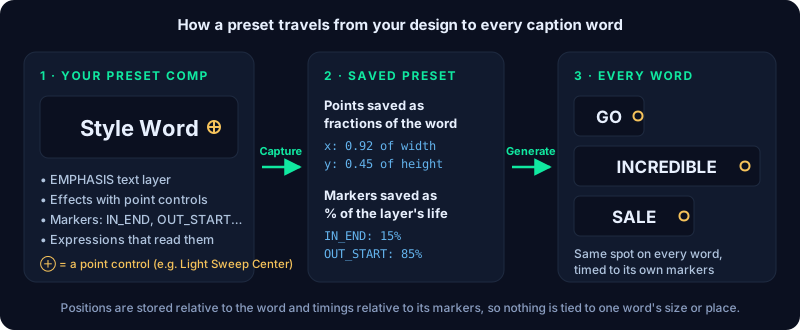
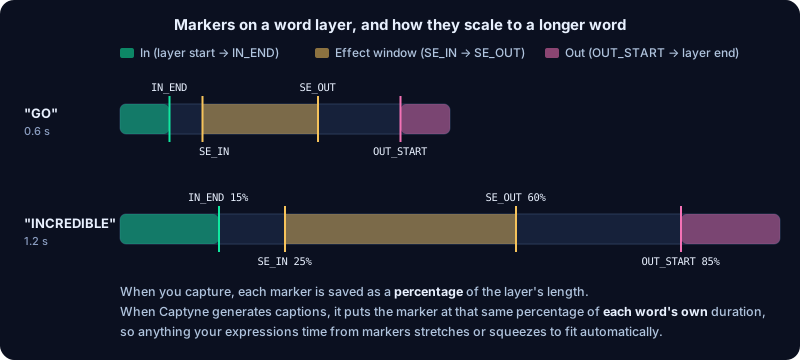
When you click ⊙ Capture Preset, each marker on a style layer is saved as a percentage of the layer’s length. At Generate Captions, Captyne puts it at the same percentage of each word’s own duration.
| Marker | What it controls | Added by |
|---|---|---|
| IN_END | The in-animation finishes and the word is fully visible. The in-animation runs from the start of the layer to here. | Every new style layer (at 15%) |
| OUT_START | The out-animation starts. It runs from here to the end of the layer. | Every new style layer (at 85%) |
| SE_IN / SE_OUT | Start and end of a mid-word effect such as a light sweep, gradient reveal, glow pulse or blur. | Smart Effects that need them (at 25% and 60%) |
| Your own names | Anything you like, for example Flash. Saved and rescaled the same way. | You, in After Effects |
The start and end of the word are the layer’s own in and out points: thisLayer.inPoint and thisLayer.outPoint.
Step 1 — Create the preset
Setup tab → My Presets → + New Preset- Click + New Preset, enter Gold Shine, pick a category and keep 2 — Normal + Emphasis.
- Click Create & Open in AE. Captyne creates a comp called
Captyne_Gold_Shine(1920×1080, 3 seconds, 30 fps).
The comp has two text layers, NORMAL (“Caption Word”) and EMPHASIS (“Style Word”). Each already has an IN_END and an OUT_START marker and a Reveal text animator. While the preset is open, the panel shows the AE Style Layer Tools, including Add Smart Effect.
Step 2 — Time the in and out animation from markers
Both layers → Text → Animators → RevealStyle both layers first: a bold sans-serif font, white for NORMAL and a larger size for EMPHASIS. Leave each layer’s Position where it is — Captyne places every generated word for you.
The Reveal animator fades characters in one after another. Its Expression Selector → Amount already reads the markers:
The expression returns 0–100 per character, so you can copy it to any animator: add Scale, Position or Blur to the Reveal animator and the characters animate those too, still timed by the markers.
For motion on the whole word, select the EMPHASIS layer and choose one of the In/Out transitions under Add Smart Effect — for example Pop In/Out or Bounce In/Out (spring). They are timed by the same two markers.
Drag IN_END and OUT_START in the timeline now. The in-animation gets faster or slower and the hold gets longer or shorter. If something doesn’t follow, it’s still driven by keyframes — keyframes replay at the same times on every word, so a 0.5-second pop would overrun a 0.3-second word.
Step 3 — Add a gold gradient that fits every word
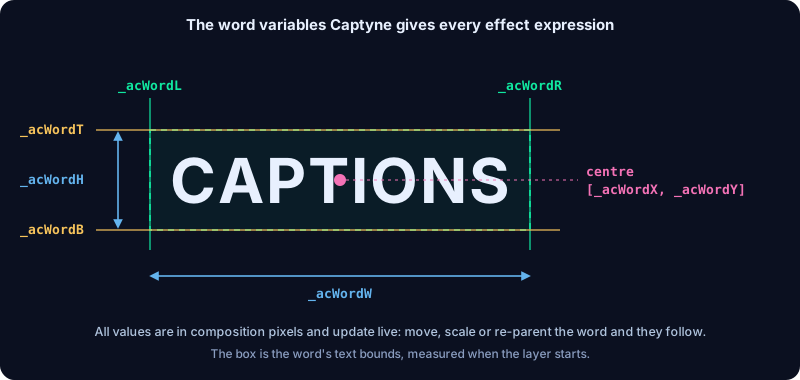
EMPHASIS → Effect → Generate → Gradient RampEffects such as Gradient Ramp, CC Light Sweep, CC Light Rays or CC Radial Fast Blur have point controls. After Effects stores those as fixed positions in the frame, so normally the point stays put while the word moves or changes length. Captyne gives every effect expression a set of word variables to fix this:
| Variable | Meaning |
|---|---|
| _acWordL, _acWordR | Left and right edge of the word |
| _acWordT, _acWordB | Top and bottom edge of the word |
| _acWordX, _acWordY | Centre of the word |
| _acWordW, _acWordH | Width and height of the word |
Add Gradient Ramp to the EMPHASIS layer, set Start Color to a light gold and End Color to a deep orange, then alt-click (Option-click on Mac) each stopwatch and paste:
Start of Ramp
End of Ramp
Seeing “_acWordX is not defined”? Captyne adds the lines that define the word variables for you — don’t type them. In a brand-new preset, click ⊙ Capture Preset once after pasting; that adds them and the expressions start working. When you edit a saved preset, they’re added automatically within a few seconds.
Step 4 — Add a light sweep timed by markers
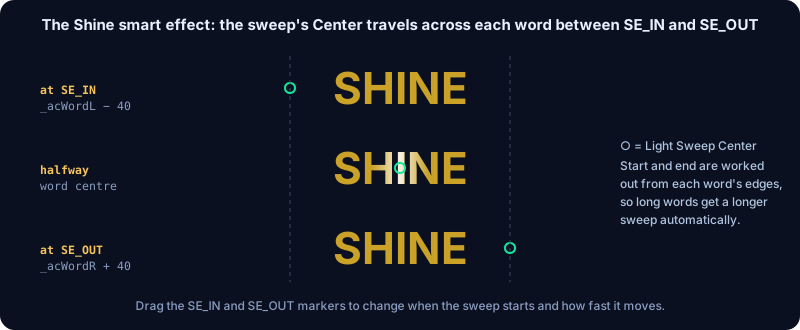
EMPHASIS → Add Smart Effect → ✨ Shine (light sweep)The quickest way is the Shine Smart Effect: select the EMPHASIS layer, choose ✨ Shine (light sweep) and click + Add. Captyne adds CC Light Sweep, writes the expression and adds SE_IN and SE_OUT markers. The sweep’s centre travels from 40 px left of the word to 40 px right of it between those two markers. Drag them to change when it runs and how fast.
To write it yourself instead, add CC Light Sweep and put this on Center. It uses SE_IN and SE_OUT if they exist and falls back to the hold between IN_END and OUT_START:
Step 5 — Add a glow flash on your own marker
EMPHASIS → Effect → Stylize → GlowCustom markers work exactly like the built-in ones. Add a layer marker to the EMPHASIS layer just after IN_END and type Flash as its comment. Add Glow, set Glow Based On to Alpha Channel, and put this on Glow Intensity:
Wrapping marker reads in try { … } catch (err) { … } with a fallback keeps the expression working if a marker is ever missing.
Step 6 — Test it before you capture
| Check | What should happen |
|---|---|
| Change the word | Edit EMPHASIS to “GO”, then “UNBELIEVABLE”. The gradient still fills the letters and the sweep crosses the whole word. |
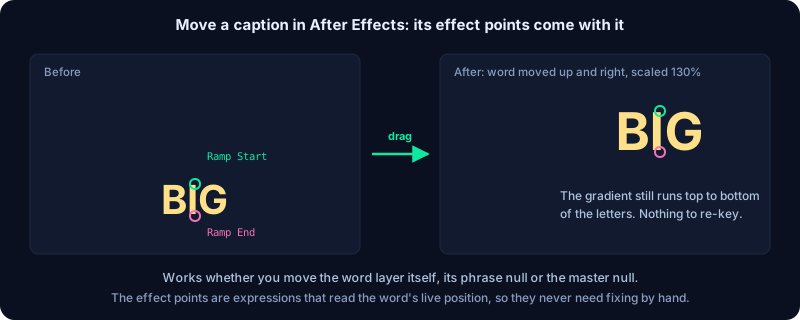
| Move the layer | Drag it anywhere in the frame. The gradient and sweep come with it. |
| Drag the markers | Move IN_END, OUT_START, SE_IN, SE_OUT and Flash. Every animation follows straight away. |
| Scrub the layer | No frame where the word disappears unexpectedly or an effect pops on or off. |
| Expression errors | No yellow warning bar at the bottom of the Composition panel. |
Step 7 — Capture and generate
- Click ⊙ Capture Preset. Captyne saves the styles, markers, effects and expressions and renders a preview.
- Open a real comp with speech, select Gold Shine, click Transcribe and then Generate Captions.
- Scrub through short and long words. Move the
ACP_MASTERnull to reposition every caption, or anACP_SET_n_CTRLnull to move one phrase — the gradient and sweep follow.
Ready to build your own preset?
The preset tools are included in every Captyne plan.
See Plans & Pricing →Rules that keep a preset working everywhere
Time everything from markers
Use IN_END, OUT_START, SE_IN, SE_OUT or your own markers. Avoid keyframes and fixed times such as linear(time, 0, 0.3, …).
Don’t keyframe point controls
A keyframed point is saved as a fixed pixel distance from the word’s centre. It doesn’t stretch to the word’s size and won’t follow if captions are moved later. Use a Smart Effect, an expression with the _acWord variables, or a still point. A still point is saved as a fraction of the word’s box, so “the right end” stays the right end on every word.
Keep expressions inside the layer
Captyne doesn’t save expressions that use thisComp (apart from thisComp.frameDuration and thisComp.frameRate), comp("…") or footage(…), because every generated word lives in a different place. Use thisLayer, its markers and the _acWord variables instead.
Add to the position Captyne sets
In transform expressions, build on value — for example value + [0, 40] — rather than returning fixed coordinates such as [960, 540].
Go deeper with Animated Light Sweep on Text (relative keyframes with a progress slider) and Gradient Text That Follows Every Word.
For the full reference, including Option B (still points) and the list of point controls Captyne recognises, see How to Build a Marker-Driven Caption Preset With Word-Tracking Effects in the Help Centre.