How to Build a Marker-Driven Caption Preset With Word-Tracking Effects (Gradient, Light Sweep and More)
A great caption preset looks right on every word: a two-letter "GO" and a twelve-letter "UNBELIEVABLE", a word that lasts a quarter of a second and one that lasts two. You get there with two ideas:
- Timing comes from markers. Animations read named markers on the layer instead of fixed keyframe times, so they stretch or squeeze to each word's duration.
- Positions come from the word. Effect points, such as a gradient's start and end or a light sweep's centre, are worked out from the word's own edges, so they fit every word and move with it.
This guide shows how both work in Captyne and walks you through building a preset that uses them. It assumes you know the basics from How to create your own caption preset.
How Captyne saves your design
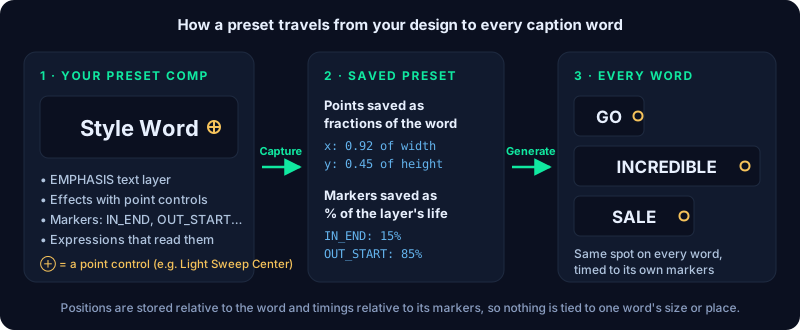
When you click ⊙ Capture Preset, Captyne reads the style layers in your preset comp and saves everything about them. Two parts matter here:
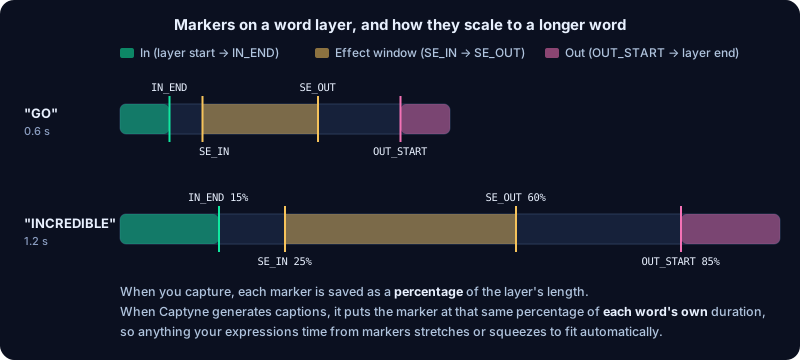
- Markers are saved as a percentage of the layer's length. A marker 15% of the way into your 3-second template layer goes 15% of the way into every generated word, however long that word is.
- Effect point controls are saved relative to the word, not as fixed positions in the frame. At Generate Captions, Captyne rebuilds each point as a small expression that reads the word's live position and size.
That's why a well-built preset needs no fixing after you generate: every word gets its own copy of your timing and your effect positions.
The markers Captyne uses
| Marker | What it controls | Added by |
|---|---|---|
IN_END | The moment the in-animation finishes and the word is fully visible. The in-animation runs from the start of the layer to here. | Every new style layer |
OUT_START | The moment the out-animation starts. It runs from here to the end of the layer. | Every new style layer |
SE_IN / SE_OUT | The start and end of a mid-word effect: a light sweep, gradient reveal, glow pulse or blur. | The Smart Effects that need them |
| Your own names | Anything you like, for example Flash or LightSweep_End. Captyne saves and rescales them the same way. | You, in After Effects |
The start and end of the word are the layer's own in point and out point, read in expressions as thisLayer.inPoint and thisLayer.outPoint. You don't need markers for those.
To read a marker in an expression, use its name:
var inEnd = thisLayer.marker.key("IN_END").time;Tip: wrap marker reads in try { … } catch (e) { … } with a sensible fallback. If a marker is ever missing, the expression keeps working instead of failing with an error.
Step 1: Create the preset
- On the Setup tab, under My Presets, click + New Preset.
- Enter a name, pick a category and choose how many styles you want (Normal and Emphasis, plus up to four more).
- Captyne creates a comp called
Captyne_<your preset name>(1920×1080, 3 seconds, 30 fps) and opens it.
The comp contains one text layer per style: NORMAL ("Caption Word"), EMPHASIS ("Style Word") and any extra styles. Each one already has:
- an
IN_ENDmarker at 15% and anOUT_STARTmarker at 85% of the layer - a Reveal text animator that fades characters in one after another, timed by those two markers
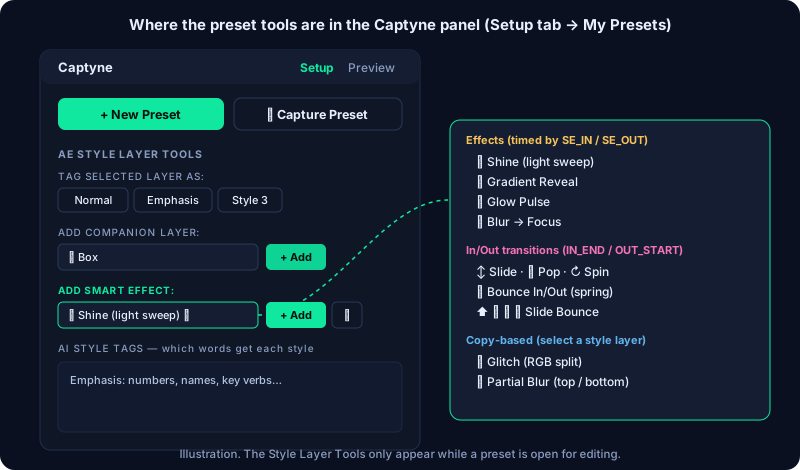
While the preset is open, the panel shows the AE Style Layer Tools: tag buttons, companion layers and Add Smart Effect.
Step 2: Design the base look
Select a style layer and style it like any After Effects text: font, size, fill, stroke, tracking. Keep the text layer's own Position where it is; Captyne places every generated word for you.
Let the markers drive the in and out animation. The Reveal animator already does this. To add motion to the whole word, select the layer and choose one of the In/Out transitions from Add Smart Effect:
- Slide, Pop or Spin In/Out
- Bounce In/Out (spring), with sliders for bounce, wobble, rotation and pivot
- Slide-Up / Down / Left / Right Bounce
All of them are timed by IN_END and OUT_START. Drag those two markers in the timeline to make the in-animation faster or the hold longer, and everything follows.
Avoid keyframing timing. Keyframes are replayed at the same times on every word, so a 0.5-second pop would overrun a 0.3-second word. Read times from markers instead.
Step 3: Add effects whose points follow the word
This is where most presets go wrong. Effects such as Gradient Ramp, CC Light Sweep, Lens Flare or CC Radial Fast Blur have point controls (the small ⊕ you drag in the Composition panel). After Effects stores those points as fixed positions in the frame, so on a normal text layer the point stays put when the word moves or changes length.
Captyne fixes this for you. There are three ways to set it up, from easiest to most flexible.
Option A: Use a Smart Effect
With a style layer selected, choose one of these from Add Smart Effect and click + Add:
| Smart Effect | What it adds |
|---|---|
| ✨ Shine (light sweep) | CC Light Sweep whose centre travels from just left of the word to just right of it |
| 🌈 Gradient Reveal | Gradient Ramp whose start is pinned to the word's left edge while its end travels across the word |
| 💡 Glow Pulse | A glow that swells and breathes during the effect window |
| 🔍 Blur → Focus | The word comes into focus at SE_IN and blurs away from SE_OUT |
Each one writes the expressions for you and adds the SE_IN and SE_OUT markers (at 25% and 60% of the layer). Drag those two markers to choose when the effect runs and how fast. You can still change the effect's other settings, such as colour, width or intensity, in Effect Controls.
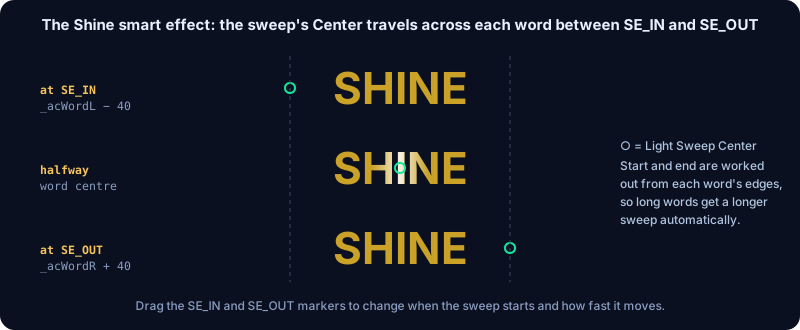
Smart Effects are named with an SE: prefix in Effect Controls. To remove them, select the layer and click ✕ next to + Add.
Option B: Place a still point
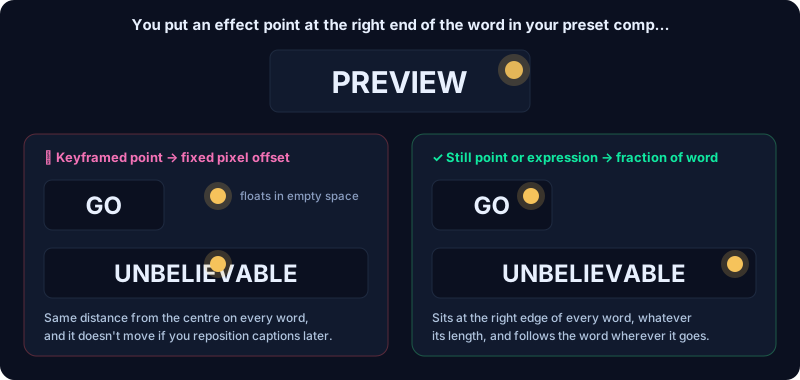
If a point doesn't need to move, just put it where you want it on the template word. For example, put CC Light Rays' Center on the right end of "Style Word" so the rays burst from the last letter.
When you capture, Captyne measures where the point sits as a fraction of the word's box: 0 is the left or top edge, 1 is the right or bottom edge. On every generated word it puts the point at the same fraction, so "the right end" stays the right end on a short word and on a long one.
Captyne recognises the point controls in After Effects' built-in and CC effects, including Gradient Ramp (Start/End of Ramp), CC Light Sweep, CC Light Rays, Lens Flare, Corner Pin, Advanced Lightning, Radial Blur, CC Radial Fast Blur and Circle. In other effects, including third-party plugins, it treats a two-value control as a point when its name includes Center, Position, Origin or Corner, or is simply Point.
Don't keyframe point controls. A keyframed point is saved as a fixed pixel distance from the word's centre. It doesn't stretch to the word's size, and it's placed once when captions are generated, so it won't follow if you move captions afterwards. For moving points, use Option A or Option C.
Option C: Write your own expression with the word variables
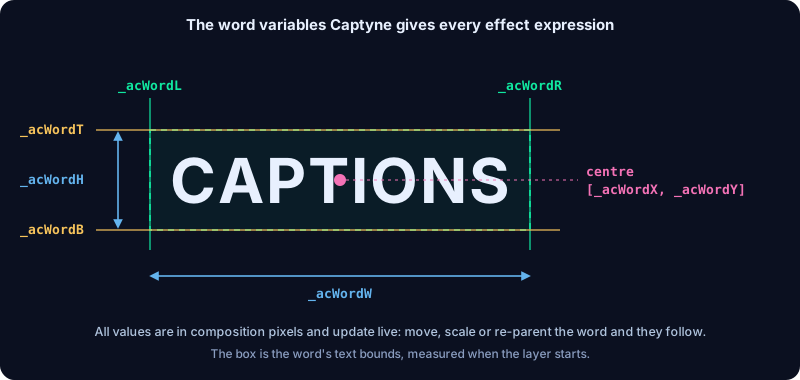
For full control, alt-click (Option-click on Mac) the stopwatch of a point control and write an expression. Captyne gives every effect expression these variables, all in composition pixels:
| Variable | Meaning |
|---|---|
_acWordL, _acWordR | Left and right edge of the word |
_acWordT, _acWordB | Top and bottom edge of the word |
_acWordX, _acWordY | Centre of the word |
_acWordW, _acWordH | Width and height of the word |
They're calculated live from the word's text bounds, so they follow the word when it's moved, scaled or parented. Captyne adds the lines that define them to your expression for you, so don't type them yourself:
- In a brand-new preset, click ⊙ Capture Preset once after pasting your expressions. That adds the definitions, and the expressions start working in the comp. Keep designing and capture again when you're done.
- When you edit a saved preset, Captyne adds them automatically within a few seconds of pasting.
A gold gradient that fits every word, top to bottom. Add Effect → Generate → Gradient Ramp to the EMPHASIS layer, set the start colour to light gold and the end colour to deep orange, then use:
Start of Ramp:
[_acWordX, _acWordT]End of Ramp:
[_acWordX, _acWordB]A light sweep timed by your own markers. Add CC Light Sweep and put this on Center. It uses SE_IN and SE_OUT if they exist and falls back to the whole hold if they don't:
var s, e;
try { s = thisLayer.marker.key("SE_IN").time; }
catch (err) { s = thisLayer.marker.key("IN_END").time; }
try { e = thisLayer.marker.key("SE_OUT").time; }
catch (err) { e = thisLayer.marker.key("OUT_START").time; }
var t = ease(time, s, e, 0, 1);
[linear(t, 0, 1, _acWordL - 40, _acWordR + 40), _acWordY]
Light rays that burst from the last letter. Add CC Light Rays and put this on Center. Moving the point a little past the edge (5% of the word's width) keeps the burst outside the final letter:
[_acWordR + _acWordW * 0.05, _acWordY]A radial blur centred on the word that eases away by IN_END. Add CC Radial Fast Blur. On Center:
[_acWordX, _acWordY]On Amount:
var ie = thisLayer.marker.key("IN_END").time;
ease(time, thisLayer.inPoint, ie, 60, 0)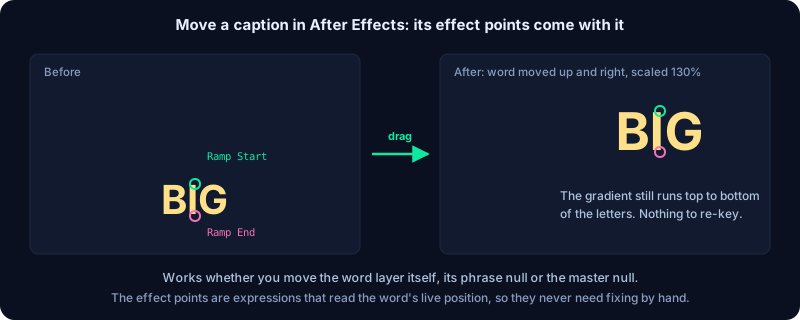
Step 4: Test it before you capture
Check the preset in the template comp before capturing. These five checks catch nearly every problem:
- Change the word. Edit the text to something short ("GO") and then long ("UNBELIEVABLE"). Gradients should still fill the letters and sweeps should cross the whole word.
- Move the layer. Drag the style layer to another part of the frame. Every effect point should come with it.
- Drag the markers. Move
IN_END,OUT_START,SE_INandSE_OUT. The animation should follow straight away. If something doesn't change, it's still driven by keyframes or fixed times. - Scrub the whole layer. Look for a frame where the word is invisible when it shouldn't be, or an effect pops on or off.
- Look for expression errors. A yellow warning bar at the bottom of the Composition panel means an expression failed. Click it to see which one.
Step 5: Capture and generate
- Click ⊙ Capture Preset. Captyne saves the styles, markers, effects and expressions and renders a preview.
- Open a real comp with speech, select your preset and click Transcribe, then Generate Captions.
- Scrub through a few short and long words. Then move the master null to reposition all the captions, or a phrase null (
ACP_SET_n_CTRL) to move one phrase. The effects should follow.
To fine-tune timing on the generated captions, drag the markers on individual word layers. See Adjusting caption timing.
Rules that keep a preset working everywhere
| Do | Don't |
|---|---|
Time animations from IN_END, OUT_START, SE_IN, SE_OUT or your own markers | Use keyframes or fixed times like linear(time, 0, 0.3, …) |
Put effect points on the word, or use the _acWord variables | Keyframe point controls |
Use value in transform expressions so you add to the position Captyne sets | Return fixed positions such as [960, 540] |
Use thisLayer, thisLayer.marker and thisComp.frameDuration | Use thisComp.width, thisComp.layer(…), comp("…") or footage(…). Captyne doesn't save expressions that reach outside the layer, because every word lives in a different place |
Wrap marker reads in try { … } catch (e) { … } | Assume an optional marker always exists |
Troubleshooting
The gradient or sweep stays in one place on the generated captions. The point was probably keyframed, or its expression uses thisComp. Switch to a still point, a Smart Effect or an expression with the _acWord variables, then capture again.
"_acWordX is not defined" (or a similar error) in the preset comp. The definitions haven't been added yet. Click ⊙ Capture Preset; Captyne adds them to every expression that uses the word variables, then saves. In a preset you reopened for editing, waiting a few seconds also fixes it.
The sweep is too fast on short words. It's timed between two markers, and short words have short layers. Move SE_OUT later, or time the sweep from SE_IN plus a fixed length, such as s + 0.4.
An effect is missing after generating. Third-party effects need to be installed on the computer that generates the captions. Captyne warns you when a preset needs a plugin you don't have.
Related
- How to combine text animators and layer animation in one caption preset
- How to use Animation Composer presets in your caption presets
- How to build a multi-style caption preset
- How to create your own caption preset
- How to highlight key words in your captions
- How to sell caption presets on the Captyne Marketplace