How to Build a Multi-Style Caption Preset: Extra Styles, Strokes and Capitalisation
Most caption presets have two looks: Normal for most words and Emphasis for the words that matter. Many styles need more, for example a red look for warnings, a gold look for numbers, or a script font for a single dramatic word.
A Captyne preset can hold up to eight styles. This guide shows how to add them, how strokes and capitalisation work for each style, how to choose which words get which style, and how Captyne keeps the capital letters an editor types.
Step 1: Add the styles
For a new preset: on the Setup tab, click + New Preset and choose the Number of Styles (2 to 6). Captyne creates a style layer for each one: NORMAL, EMPHASIS, STYLE_3 and so on.
To add a style to a preset you're editing: in the AE Style Layer Tools, under Add new style layer, pick a style number (3 to 8) and click + Add Layer. The new layer starts with the default markers and Reveal animator, and without a stroke.
To turn a layer you already designed into a style: select it and click its tag button (Normal, Emphasis, Style 3 … Style 8). The tag is what tells Captyne which style the layer is. The layer's name and position don't matter.
Step 2: Design each style
Each style layer is a complete design of its own: font, size, fill, stroke, effects, text animators and layer animation. Styles don't need to share anything, so Style 3 can use a different font and its own animation.
Where to put the layers
Put the style layers wherever you like in the preset comp. Spacing them out vertically, as the built-in presets do, just keeps them readable while you work and in the preset thumbnail. It doesn't move the captions: Captyne lays out every generated word on its caption line, whichever style it uses. (Before version 1.5.3, offset style layers could misalign captions. Update and capture again if you see this.)
Strokes
Set a stroke in the Character panel (stroke colour, width, and Fill Over Stroke or Stroke Over Fill) on the style layer. Captyne saves it for that style only. Styles without a stroke stay without one: captions no longer pick up a stroke from whatever the Character panel happens to show.
Capitalisation
You control capital letters in two independent ways:
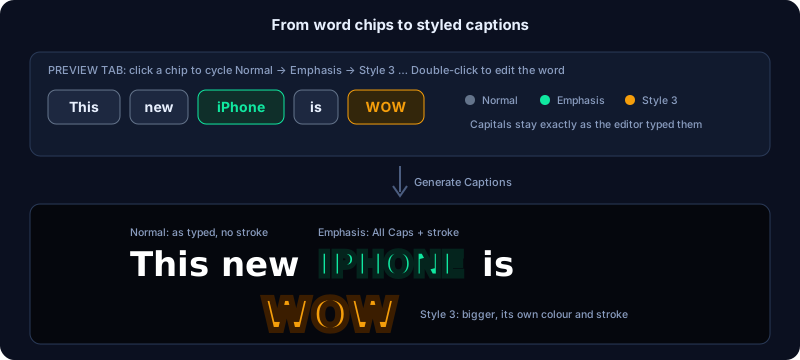
- The words themselves. Captions use each word exactly as it's written in the transcript, with any capital letters the editor typed: "Hello", "WORLD", "iPhone".
- A style's All Caps or Small Caps setting. If you turn on All Caps or Small Caps in the Character panel for a style layer, Captyne 1.5.4 and later save it with that style. For example, Emphasis words can always show in capitals while Normal words keep their own capitalisation.
Styles without All Caps show every word as typed. Older Captyne versions copied the All Caps button from After Effects' Character panel into every caption, which is why captions sometimes came out all in capitals. Update to 1.5.4 to fix it. If a preset was meant to be in capitals, turn on All Caps on its style layers and capture it again.
Hiding parts of a style
To try a style without one of its animators or effects, click the animator's eye icon or the effect's fx switch. Captyne keeps them switched off in your captions, so you can turn them back on later without rebuilding them.
Step 3: Capture the preset
Click ⊙ Capture Preset. Captyne saves every tagged style layer. The legend at the top of the Preview tab shows each style's colour.
Step 4: Choose which words get which style
On the Preview tab, click a word chip to cycle it through the preset's styles: Normal → Emphasis → Style 3 → … → back to Normal. The chip's colour shows the style it will use.
The Emphasis Strategy on the Setup tab can pick words for you automatically (the last word of each phrase, or AI Decide with the Managed API). To use Style 3 and above, or to override the automatic choice, click the words you want. See How to highlight key words in your captions.
Step 5: Fix capitalisation word by word
Double-click a word chip to edit it. Change its spelling or capitals, for example "iphone" to "iPhone" or "wow" to "WOW", then press Enter.
- Your changes are saved with the project. See Your captions are saved with your project.
- Transcribing the same clip again keeps your capitalisation. Captyne matches each new word to the word you edited at the same moment and copies its capitals. Words that were transcribed differently are left as they are, and a message tells you how many words kept their capitalisation.
- All Caps on the Preview tab shows every word in capitals for this set of captions only. It doesn't change your edits or the preset. Turn it off and your own capitalisation comes back.
Active Highlight with several styles
Active Highlight marks each word while it's spoken. It works with every style: it changes only what you set in its own settings (colour, stroke, highlight box, pop), and the rest of the word's style stays as designed. Don't combine it with a Fill Color text animator on the same style: both change the colour, and the animator wins.
Checklist before you share the preset
- Each style layer is tagged with the right style.
- Every style looks right on a short word and a long one.
- Strokes and All Caps are on only where you want them.
- Hidden animators and switched-off effects are the ones you meant to hide.
- You generated a test clip using every style at least once.
Troubleshooting
A style's look doesn't appear in the captions. No words use that style yet. Click word chips in the Preview tab until they show the style's colour, then generate again. If they already do, capture the preset again with Captyne 1.5.3 or later.
All my captions are in capitals. Update to Captyne 1.5.4. If they still are, check that All Caps is off on the Preview tab and on the preset's style layers.
A style shows a stroke I didn't add. Capture the preset again with Captyne 1.5.3 or later. Older versions could copy the Character panel's stroke.
Captions jump up and down between styles in "one word at a time" mode. Fixed in Captyne 1.5.3. Update and generate again.