How to Combine Text Animators and Layer Animation in One Caption Preset (After Effects)
The best-looking caption presets use two kinds of motion at once:
- Inside the word: the letters rise, fade or blur in one after another. That's a text animator.
- The whole word: it pops, bounces, slides or spins as one piece. That's a layer animation on the layer's Transform properties (Scale, Position, Rotation, Opacity).
This tutorial builds a preset that does both: letters rise into place one by one while the whole word pops. Both animations are timed by the same two markers, so they stay in sync on a quick two-letter word and on a long, slow one.
It follows on from How to build a marker-driven caption preset. If you haven't made a preset before, start with How to create your own caption preset.
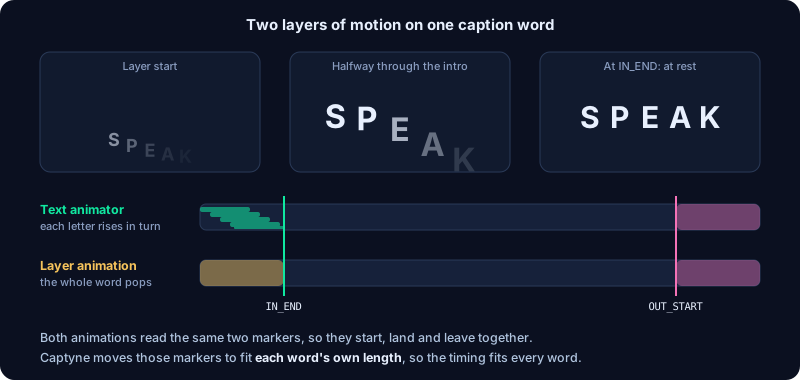
How Captyne times each kind of animation
When you click ⊙ Capture Preset, Captyne saves everything on each style layer. When you click Generate Captions, it rebuilds the layer once for every word. How the timing carries over depends on how you built it:
| What you used | What happens on each generated word |
|---|---|
Markers (IN_END, OUT_START, SE_IN, SE_OUT, your own) | Moved to the same percentage of the word's length |
| Expressions that read those markers | Copied as they are, so they follow the moved markers on every word |
| Keyframes (on Transform or text animator properties) | Replayed at the same number of seconds after the word starts |
| Animation Composer transitions | Kept their length from the start and end of each word. See Animation Composer presets |
So markers plus expressions fit every word. Keyframes only work for a short intro that finishes before your shortest word ends. A keyframed outro near the end of your 3-second template layer would play 2.7 seconds into each word, after most words are gone.
Step 1: Create the preset
- On the Setup tab, under My Presets, click + New Preset.
- Name it (for example "Rise & Pop"), choose 2 — Normal + Emphasis and click Create & Open in AE.
- Captyne opens a comp called
Captyne_Rise & Popwith a NORMAL and an EMPHASIS text layer. Each has anIN_ENDmarker at 15% and anOUT_STARTmarker at 85% of the layer, plus a Reveal text animator.
Style the text first: font, size, fill and stroke in the Character panel. This tutorial uses the NORMAL layer. Repeat the steps on EMPHASIS, or build EMPHASIS with a stronger version of the same motion.
Step 2: Centre the anchor point
Layer animations scale and rotate around the layer's anchor point. On a new text layer it sits at the bottom-left of the text, so a pop would grow from the corner.
Select the layer and press Ctrl + Alt + Home (Windows) or Cmd + Option + Home (Mac) to move the anchor to the centre of the text without moving the text. You can also drag it with the Pan Behind tool (Y), for example to the bottom centre so the word grows up from its baseline.
Captyne 1.5.4 and later save where the anchor sits as a position on the word, such as "the centre" or "the bottom middle". Every generated word gets its anchor in the same place, whatever its length.
Step 3: Build the letter animation (text animator)
The Reveal animator already fades letters in and out. We'll replace it with letters that rise and fade in.
- Twirl open the layer's Text group. Either delete Reveal, or click its eye icon to turn it off. Captyne keeps hidden animators off in your captions.
- Click Animate → Position. In the new Animator 1, set Position to
0, 60(60 pixels below the letters' normal place). - Click Add → Property → Opacity on the same animator and set Opacity to
0. - Click Add → Selector → Expression, then delete Range Selector 1. The Expression Selector decides, for each letter, how much of the animator applies: 100 means fully lowered and invisible, 0 means in place.
- Alt-click (Option-click on Mac) the stopwatch next to the Expression Selector's Amount and paste:
// 100 = letter lowered and hidden, 0 = in place
var ie, os;
try { ie = thisLayer.marker.key("IN_END").time; }
catch (e) { ie = thisLayer.inPoint + (thisLayer.outPoint - thisLayer.inPoint) * 0.15; }
try { os = thisLayer.marker.key("OUT_START").time; }
catch (e) { os = thisLayer.outPoint - (thisLayer.outPoint - thisLayer.inPoint) * 0.15; }

var win = Math.max(ie - thisLayer.inPoint, thisComp.frameDuration);
// Letters start one after another across the first 40% of the intro,
// and each one takes 60% of it, so the last letter lands exactly on IN_END.
var spread = (textTotal > 1) ? (textIndex - 1) / (textTotal - 1) : 0;
var start = thisLayer.inPoint + spread * win * 0.4;
var end = start + win * 0.6;

if (time < os) {
  easeOut(time, start, end, 100, 0);
} else {
  easeIn(time, os, thisLayer.outPoint, 0, 100);
}
Scrub the layer: the letters rise into place one by one and are all settled at IN_END. After OUT_START they drop and fade together.
Why this works on every word: the stagger is a share of the intro, not a fixed delay per letter. A 12-letter word squeezes its letters closer together instead of overrunning the intro, and a short word spreads them out.
Tip: to animate other things per letter (blur, scale, tracking, rotation or fill colour), add those properties to the same animator. The one expression drives them all.
Step 4: Add the whole-word animation (layer animation)
Now make the whole word pop as the letters arrive. Pick one of these options. Don't use more than one on the same property, or they'll fight each other.
Option A: Add a Smart Effect (no expressions)
With the layer selected, choose Pop In/Out, Bounce In/Out (spring), Slide In/Out or Spin In/Out from Add Smart Effect in the Captyne panel and click + Add.
They're timed by the same IN_END and OUT_START markers as your text animator, so the two stay in sync. Bounce In/Out adds sliders to Effect Controls: SE: Bounce, SE: Wobble, SE: Rotation and SE: Pivot X/Y. Use them to tune the spring and the point the word bounces around.
Option B: Write your own Scale expression
For a pop that overshoots and settles, alt-click the stopwatch of the layer's Transform → Scale and paste:
var ie, os;
try { ie = thisLayer.marker.key("IN_END").time; }
catch (e) { ie = thisLayer.inPoint + (thisLayer.outPoint - thisLayer.inPoint) * 0.15; }
try { os = thisLayer.marker.key("OUT_START").time; }
catch (e) { os = thisLayer.outPoint - (thisLayer.outPoint - thisLayer.inPoint) * 0.15; }

var s;
if (time < ie) {
  var t = linear(time, thisLayer.inPoint, ie, 0, 1);
  s = 0.6 + 0.4 * t + 0.25 * Math.sin(t * Math.PI);  // grows past full size, then settles
} else if (time < os) {
  s = 1;
} else {
  s = ease(time, os, thisLayer.outPoint, 1, 0.8);
}
var out = [value[0] * s, value[1] * s];
if (value.length > 2) out.push(value[2]);
out
Two rules keep a layer expression safe in Captyne:
- Build on the current value. Captyne sets the Scale and Position of every generated word, so multiply or add to
valueinstead of returning fixed numbers such as[100, 100]or[960, 540]. - Stay on the layer. Use
thisLayer,thisLayer.markerandthisComp.frameDuration. Expressions that point at other layers or comps (thisComp.layer(…),comp("…")) aren't saved, because every word lives in a different place.
Option C: Keyframes, for a short intro only
Keyframes are fine for a quick intro, for example Scale 80% → 100% over the first 0.2 seconds. Captyne replays them the same number of seconds after each word starts, and Position keyframes are replayed around each word's own spot. Keep the whole keyframed move shorter than your shortest words (about 0.25 seconds is safe), and use an expression for the outro.
Step 5: Check it, then capture
- Change the text to a short word ("GO") and a long one ("INCREDIBLE"). The letters should still finish together at
IN_END. - Drag the markers. Move
IN_ENDandOUT_START: both the letters and the pop should follow straight away. If one doesn't, it's still driven by fixed times. - Check the pivot. The pop should grow from where you put the anchor, not from a corner.
- Look for expression errors. A yellow bar at the bottom of the Composition panel means an expression failed. Click it to see which one.
- Click ⊙ Capture Preset, then generate captions on a real clip and scrub a few short and long words.
What text animators can and can't carry
Captyne saves text animators with their properties, selectors (Range, Wiggly and Expression), the Advanced selector settings, keyframes and expressions. A few things don't carry over:
- Fill Hue, Saturation and Brightness, Stroke Color, Fill Opacity and Stroke Opacity animator properties aren't saved. Use Fill Color or Opacity instead.
- 3D properties (Front, Back, Side and Bevel) aren't saved.
- A Fill Color animator and Active Highlight both change the word's colour. Where both apply, the animator wins, so don't combine them on the same style.
Animators you turn off with the eye icon, and effects you turn off with the fx switch, stay off in your captions. If you hid them in a preset captured before version 1.5.3, capture it again.
Troubleshooting
The letters are still moving when the word disappears. The stagger is probably a fixed delay per letter, such as textIndex * 0.04. Use a share of the intro, as in Step 3, or move IN_END earlier.
The word grows from its bottom-left corner. The anchor point wasn't centred, or the preset was captured with a Captyne version older than 1.5.4. Centre the anchor (Step 2) and capture again.
The pop plays on the template but not on the generated captions. It's probably keyframed later than the words last. Use a Smart Effect or a marker-driven expression instead.
Scale jumps or the word lands in the wrong place. Two animations are driving the same property, for example a Smart Effect and your own Scale expression. Keep one.