How to Use Animation Composer Presets in Your Caption Presets (Mister Horse + Captyne)
Animation Composer by Mister Horse is one of the most popular free animation plugins for After Effects. Its transition presets (bounces, slides, scales, blurs and wiggles) are a quick way to give captions polished motion.
From Captyne 1.5.4, you can build a caption preset on top of them: apply an Animation Composer In and Out transition to a style layer, capture the preset, and every generated caption word gets the same animation, sized to fit that word.
What you need
- Captyne 1.5.4 or later. Presets built with Animation Composer in an older version don't animate. Update, then capture them again. See How to update Captyne.
- Animation Composer 3 installed in After Effects, from mister-horse.com. The free version and its bonus packs are enough.
- A caption preset to add it to. See How to create your own caption preset.
How it works
An Animation Composer transition is made of three things on the layer:
- Expressions on the properties it animates, such as Scale, Position or Opacity
- Control effects in Effect Controls, where you change the direction, distance, bounce and so on
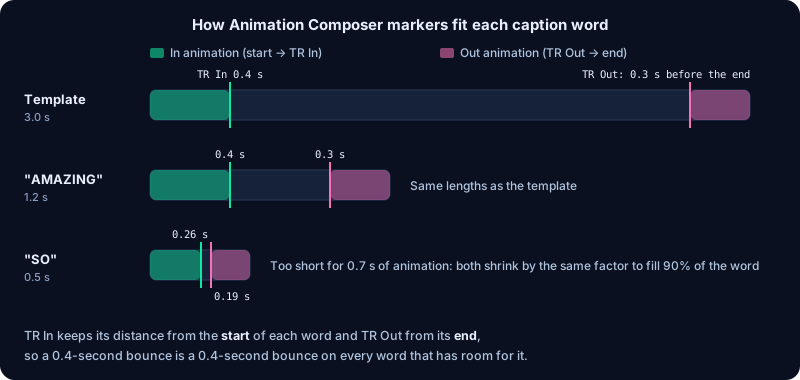
- Two markers, TR In and TR Out. The In animation runs from the layer's start to TR In, and the Out animation from TR Out to the layer's end.
Captyne saves all three. On each generated word it places TR In the same number of seconds after the word starts, and TR Out the same number of seconds before it ends, so a 0.4-second bounce stays a 0.4-second bounce on every word.
When a word is too short for both animations, Captyne shrinks them both by the same amount so they fill 90% of the word. The word still bounces in and out completely, just faster, and the two markers never land on the same frame.
Step 1: Prepare the style layer
- Create a new preset, or edit an existing one, so its preset comp is open.
- Style the text on the NORMAL layer: font, size, colour, stroke.
- Decide on Captyne's Reveal animator. Animation Composer animates the whole word; the Reveal animator fades in the letters one by one. Keep both for a combined effect, or click Reveal's eye icon to turn it off. Hidden animators stay off in your captions.
- Centre the anchor point. Scale, rotation and many bounce transitions move around the anchor point. Press Ctrl + Alt + Home (Cmd + Option + Home on Mac), or use Animation Composer's own Anchor Point Mover. Captyne keeps the anchor at the same place on every generated word, such as the centre or the bottom middle.
Step 2: Apply the transitions
- Select the NORMAL layer.
- In the Animation Composer panel, find an In transition, for example a scale bounce, and apply it to the layer.
- Apply an Out transition the same way.
- Animation Composer adds the TR In and TR Out markers to the layer. Drag them to set how long each animation lasts. Keep the In animation short, about 0.3 to 0.6 seconds, because most spoken words last less than a second.
- Fine-tune the look in Effect Controls using the transition's controls.
Repeat for EMPHASIS and any other styles. Each style can use a different transition, for example a soft fade for Normal words and an elastic pop for Emphasis words.
Step 3: Line up Captyne's markers
If you kept Captyne's Reveal animator, the layer also has Captyne's own IN_END and OUT_START markers. Captyne measures the word "at rest" at IN_END, so:
- Move
IN_ENDto TR In or later, so the Animation Composer In animation has finished. - Move
OUT_STARTto TR Out or earlier.
If you deleted the Reveal animator and its markers, Captyne measures the word halfway between TR In and TR Out instead, so there's nothing to line up.
Step 4: Capture and test
- Scrub the layer in the preset comp and check that both transitions play cleanly.
- Click ⊙ Capture Preset.
- Generate captions on a real clip. Scrub a few long words and a few very short ones ("a", "to", "I"). Short words should animate faster, never cut off.
To change the transition later, edit the preset from My Presets. Captyne rebuilds the preset comp with the Animation Composer markers and controls in place.
Mixing Animation Composer with Captyne features
| Combination | Works? |
|---|---|
| Animation Composer transition + Captyne's Reveal letter animation | Yes. Line up the markers as in Step 3 |
| Animation Composer transition + effects (glow, shadow, gradient, Captyne Smart Effects such as Shine) | Yes |
| Animation Composer transition + a Captyne transition Smart Effect (Pop, Bounce, Slide, Spin) on the same layer | No. Both drive Scale and Position. Use one or the other |
| Animation Composer transition + Active Highlight | Yes. The highlight box follows the animated word |
| Different Animation Composer transitions per style | Yes |
Sharing presets that use Animation Composer
Captyne stores the control values you set inside the animation, as a fallback for when the control effects can't be recreated. Even so, anyone who generates or edits captions with your preset should have Animation Composer installed, so the controls are there to adjust. If you sell or share the preset, say in its description that it uses Animation Composer. See How to sell caption presets on the Captyne Marketplace.
Troubleshooting
Nothing animates on the generated captions. The preset was captured with a Captyne version older than 1.5.4. Update Captyne, open the preset with Edit, and capture it again.
The word scales or rotates from its bottom-left corner. Centre the anchor point on the style layer (Step 1) and capture again with Captyne 1.5.4 or later.
The In animation looks cut short on short words. That's the automatic squeeze. Shorten the In and Out transitions by moving TR In earlier and TR Out later, or group short words into phrases with a reveal mode that keeps them on screen longer. See Reveal modes explained.
The word jumps at the start or settles in the wrong place. Check that IN_END sits after TR In (Step 3), then capture again.